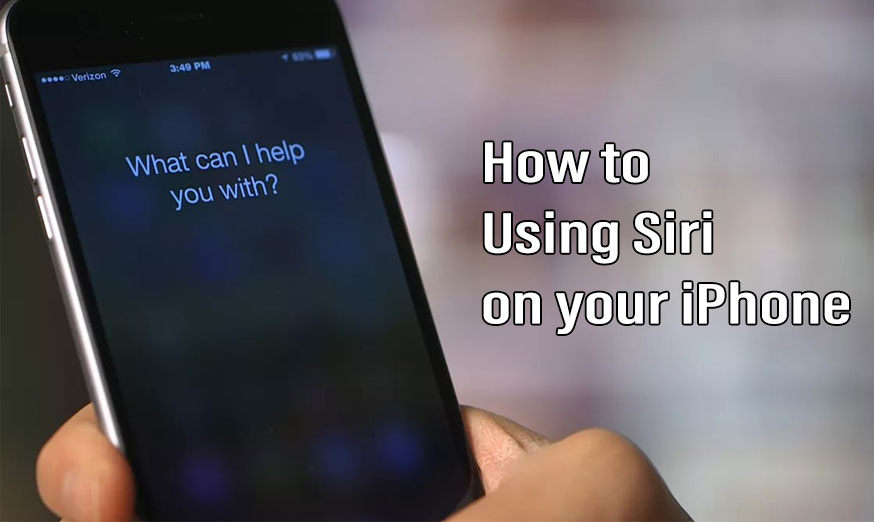
iPhone 17 User Manual: How to Get the Latest for Free

Apple’s iPhone 17 has arrived, boasting sleek design enhancements, powerful performance upgrades, and features that aim to redefine the smartphone experience. But with every new release, there’s one invaluable resource that helps users unlock the full potential of their device: the official iPhone 17 user manual.

If you’ve just upgraded or are planning to get the iPhone 17, knowing how to access and use the latest manual will ensure you make the most of everything this flagship phone has to offer.
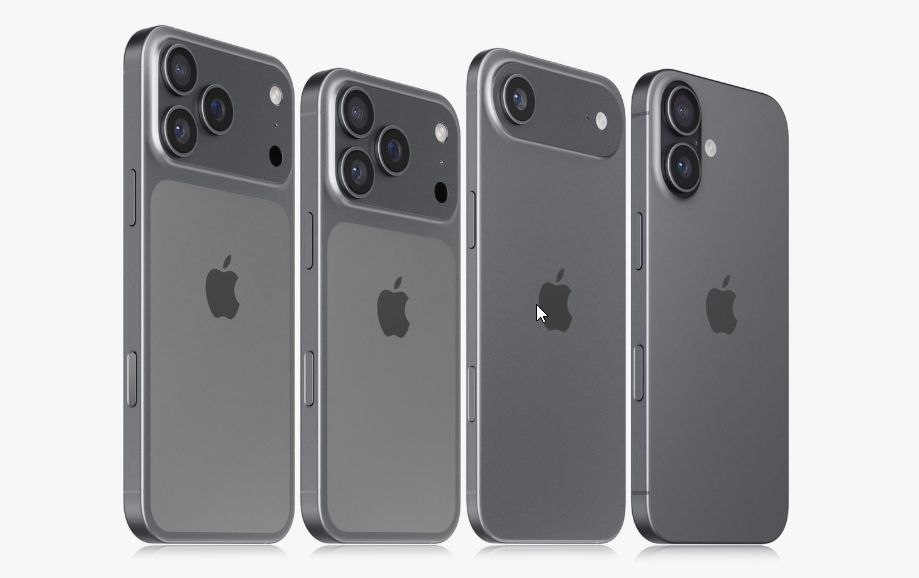
iphone 17 user manual

In this guide, we’ll walk you through the best ways to get the iPhone 17 manual, why it’s so important, and how it can enhance your iPhone experience.

Why You Need the iPhone 17 User Manual

While many features of the iPhone feel intuitive, Apple is always adding new tools, settings, and shortcuts that even seasoned users might miss. The user manual provides:

  • Step-by-step guidance for setup, personalization, and feature exploration.
  • Comprehensive feature details that cover everything from Dynamic Island enhancements to accessibility settings.
  • Troubleshooting tips for common issues.
  • Hidden tricks and shortcuts that aren’t obvious at first glance.

In short, the manual is your ultimate guide to going beyond the basics and truly mastering your iPhone 17.

How to Get the Latest iPhone 17 User Manual

Apple offers multiple ways to access the user manual, making it easy for everyone—whether you’re reading on your phone, computer, or even in print. Here are the most reliable options:

1. Apple’s Official Website

Apple usually updates the iPhone user guide online as soon as a new model is released. By visiting Apple’s official support page, you can select your device (in this case, iPhone 17) and view the complete manual. This has the benefit of always being up-to-date with the latest iOS version your phone runs.

2. Apple Books App

The iPhone 17 user guide is also available as a free eBook in the Apple Books app. Simply open Books, search for “iPhone User Guide for iOS 26” (which the iPhone 17 runs on), and you’ll be able to download it. This option is excellent because it allows offline reading, bookmarking, and quick reference.

3. On Your iPhone Settings

Another quick way to access instructions is through your phone’s Tips app and built-in Help sections under Settings. These features often include guided tutorials matched to your current iOS version.

4. Downloadable PDF Versions

Apple sometimes provides a downloadable PDF edition via its support page. This is handy for those who prefer keeping a personal copy on their laptop, tablet, or even printed out.

Tips for Using the Manual Effectively

  • Search smartly: Use the search function in PDF or Apple Books to quickly find specific features, such as “StandBy mode” or “Face ID.”
  • Bookmark important sections:Highlight or save sections related to battery optimization, privacy settings, or accessibility if you rely on them often.
  • Pair with updates: Each iOS update may bring subtle changes. Check back frequently on Apple’s site to see if the guide has been refreshed for your iOS version.

The iPhone 17 represents another bold step forward in Apple’s smartphone lineup, and the best way to explore every new function it brings is to rely on the official user manual.

Whether you prefer reading it online, downloading it from Apple Books, or browsing help topics in Settings, the manual is readily available and completely free. Think of it as your personal roadmap to unlocking all the hidden gems of iOS 25 and beyond.

So, before you dive too deep into your new iPhone 17, make sure you’ve got the user guide ready. It’s the simplest tool to ensure your device works for you in the smartest way possible.

Would you like me to also prepare a step-by-step walkthrough with screenshots (mocked up) showing how to download the iPhone 17 manual directly from Apple Books and the website? That could make the article even more practical.
Protect Your Phone in Style with Kate Spade iPhone 16 Pro Cases

If you own the sleek new iPhone 16 Pro, it’s likely that you’re searching for the ideal case that complements your personal style and provides exceptional protection. Enter Kate Spade New York—a brand synonymous with sophistication and playful elegance. Known for their unique approach to design, Kate Spade’s iPhone 16 Pro cases are here to turn your phone into a stylish accessory you can’t wait to show off.

kate spade iphone 16 pro cases

Why choose Kate Spade’s iPhone 16 Pro Cases?

For decades, the fashion world has trusted Kate Spade, and their tech accessories are no different. Here are some reasons why Kate Spade cases are an excellent choice for your iPhone 16 Pro:

  • Chic Designs: From whimsical polka dots to timeless florals and glitter accents, Kate Spade offers designs that cater to every aesthetic.
  • Durable Materials: These cases aren’t just about looks—they’re built with high-quality materials to protect your phone from everyday wear and tear.
  • Slim Fit: Kate Spade cases are known for their slim profile, ensuring that your iPhone 16 Pro maintains its sleek design without added bulk.
  • Brand Trust: As a household name in luxury fashion, Kate Spade delivers not only style but also reliability and quality.

Top Features of Kate Spade iPhone 16 Pro Cases

Kate Spade cases for the iPhone 16 Pro come packed with features that make them both functional and fabulous:

  • Shock Absorption: To protect your device from unintentional drops, many of these cases feature shock-resistant bumpers.
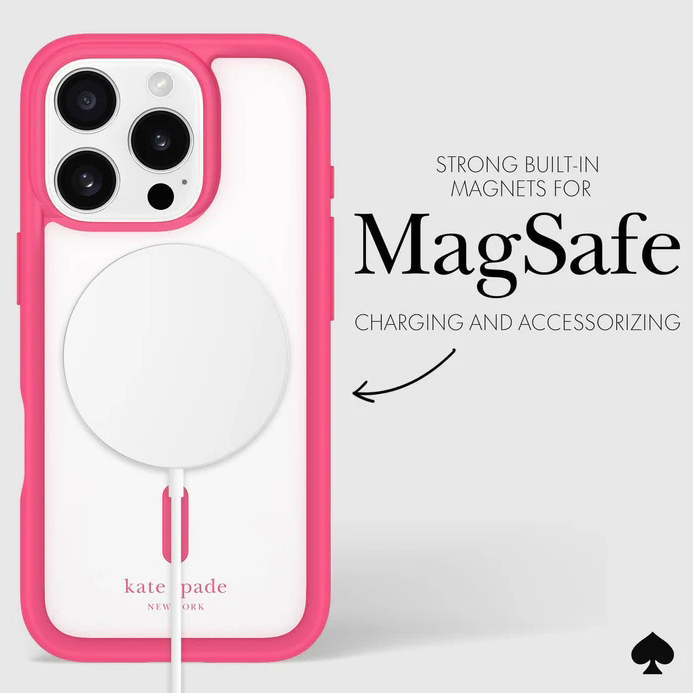
  • Wireless Charging Compatibility: You won’t need to remove your case to charge wirelessly, making life that much easier.

kate spade iphone 16 cases feature

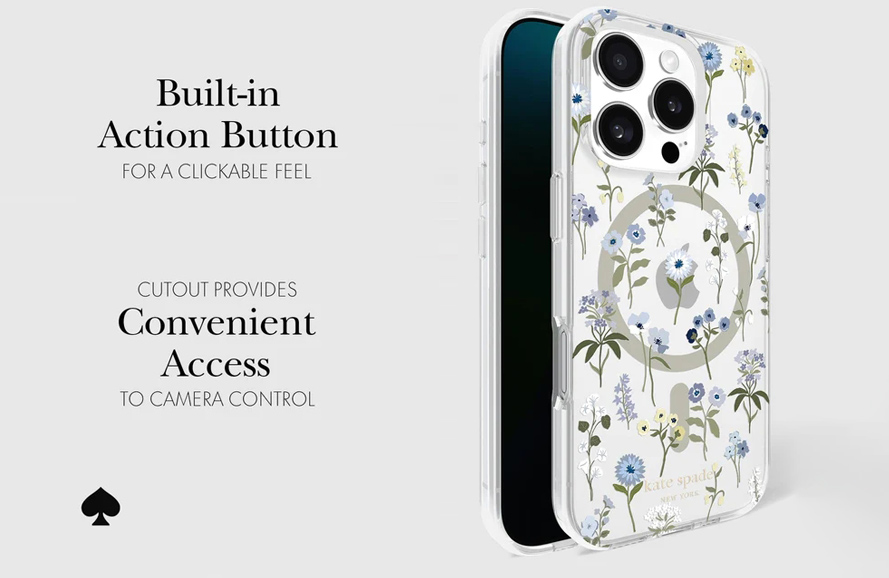
  • Precise Cutouts: We meticulously craft each case to ensure easy access to all ports, buttons, and the camera.
  • Sustainability Options: Kate Spade is increasingly incorporating sustainable materials in their designs, allowing you to make an eco-conscious choice.

Best-Selling Designs

Kate Spade’s iPhone 16 Pro cases offer a wide range of styles to suit every personality. Here are a few fan favorites:

  • Glitter Ombre: This dazzling case features a gradient glitter finish that’s perfect for those who love a little sparkle in their lives.
  • Hollyhock Floral: A soft yet vibrant floral design that adds a touch of elegance to your everyday look.
  • Spade Flower Monogram: For a classic, understated vibe, the iconic spade flower design is a top pick.
  • Confetti Dot Clear Case: This transparent case with playful dots lets your iPhone’s color shine through while adding a humorous twist.

Caring for your Kate Spade case

To keep your Kate Spade case looking as fresh as the day you bought it, follow these simple care tips:

  • Wipe it regularly with a soft, damp cloth to remove dirt and smudges.
  • Avoid harsh chemicals or abrasive materials that could damage the design.
  • Store your phone away from direct sunlight to prevent discoloration over time.

Where to Buy

Kate Spade iPhone 16 Pro cases are available at major retailers across the United States, including the Kate Spade website, Apple stores, and department stores like Nordstrom and Macy’s. You can also find a wide selection on e-commerce platforms such as Amazon.

Conclusion

Your iPhone 16 Pro deserves the best, and a Kate Spade case offers a delightful combination of fashion and functionality. With chic designs, durable protection, and thoughtful features, these cases let you express your personality while keeping your phone safe.

Whether you prefer glittery glam or classic elegance, a Kate Spade iPhone 16 Pro case awaits your selection. So why wait? Elevate your phone game today!

iPhone 13 Price: Apple’s Latest Flagship Could Cost Less than the iPhone 12

There is good news for you who are curious to get your hands on the new iPhone 13. The new phone that may be released soon will start at a lower price than when iPhone 12 was released. Although the price may not be everything, it often is the decisive factor that made people purchase the phone.

The trend so far has always been the latest iPhone is significantly more expensive than the previous one. However, that might change soon.

When September comes, and so are the new details of the iPhone 13. What’s more, Apple might choose to release the new phone then. With the talk about iPhone 14 already starting. This could be a sign of danger for iPhone 12’s popularity.

The New Apple iPhone 13 Price Prediction

An Apple analyst, Ming-Chi Kuo, predicted that the top-end iPhone 14, possibly called Pro Max, will have the starting price at $900. This speculation caused quite an uproar since that price is considerably low for a flagship phone. To compare, the Samsung Galaxy s21 price is started at $1200, and the iPhone 12 retail price is at $799.

There is a chance that the starting price for the upcoming iPhone 13 is also $799. Or maybe even lower, considering that it won’t have any major upgrade than the previous version.

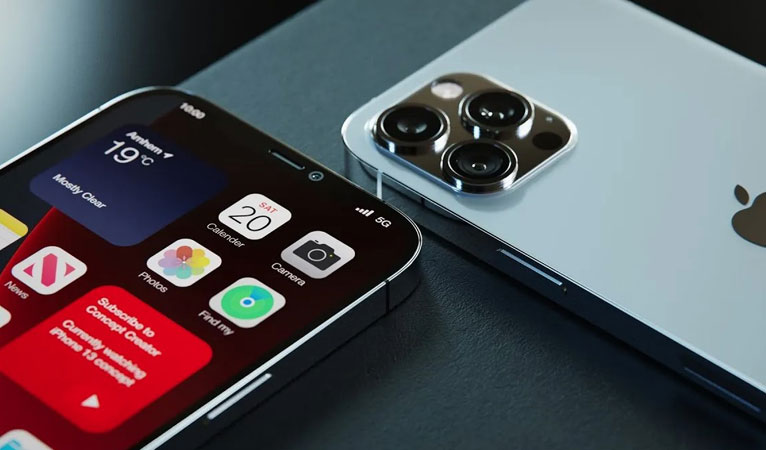
iphone 13 price

When it comes to pricing across the generations, Apple may seem inconsistent at first. However, one thing for sure is that they always try to provide a more affordable version.

Learning from Samsung Galaxy FE (Fan Edition) and Google Pixel 5 that has quite affordable starting price. Apple may do the same. And if they do, it will make the flagship competition fiercer.

Since Apple has confirmed that they will still be releasing the mini, pro, and Pro Max versions of iPhone 13, it will be interesting to see how much the price will differ.

Keep in mind that there have been some whispers about iPhone 14. Even though it’s still whispers and floating rumors. There’s a high chance that Apple is releasing iPhone 14 in close succession with the iPhone 13.

As usual, whenever a new iPhone is being released, the previous model’s price went free falling. However, since there are no major differences between iPhone 12 and iPhone 13, people may choose the cheaper iPhone 12. Thus, put the price on steady.

If you are thinking to get a new iPhone 12 now. You may want to wait a little longer to see if there is a major price difference. It is sometimes best to wait for a little before getting a new iPhone. But if you need a new phone soon. Then you can start checking out the prices for an iPhone 12. After all, it’s one of the best all-rounder flagship phones this year.

The 5G connectivity

iPhone 12 is the first iPhone that supports 5G connectivity. And in addition to having massive improvements from iPhone 11. Many critics choose this phone to be included in the best list.

So far, iPhone 12 has managed to be the iPhone that brings the largest revenue to Apple. This fact is mainly because the phone is considered affordable given the technology it has.

The iPhone 12 has large technology improvements than iPhone 11. As it is the first iPhone that has 5G connectivity. It also has Corning ceramic shield that makes even a clumsy person can have an iPhone without the worry of breaking it.

Another reason why iPhone 12 is immensely popular is the fact that it’s affordable enough. The price doesn’t differ much from than iPhone 11, yet it packs a much better technology.

The bar is set quite high for iPhone 13 to reach. But it is possible to do since the phone might not have massive upgrades. After all, people have started talking about iPhone 14.

It is already common knowledge that Apple might not introduce a drastic change for iPhone 13. Therefore, you could expect a similar pricing scheme for the upcoming phone.

And if the rumor is true that they are already working on the preparation for iPhone 14. You may want to get the iPhone 12 now and have it upgraded at a later date. Or well, wait for the price to get lower when Apple release iPhone 13.

if you already have it, you need to read the user manual for the phone. You can find it here.

Signing up Free Apple ID for iTunes Store – the Guideline

You may need to purchase a range of digital music and digital products such as movies, apps, and audio books. We can say that the iTunes Store can be the great resource. It is important to have an iTunes account in case that you want to use the iTunes Gift Cards to buy or to redeem. Even it is the place to access any free downloads as well as services. Here’s how to signing up your Free Apple ID.

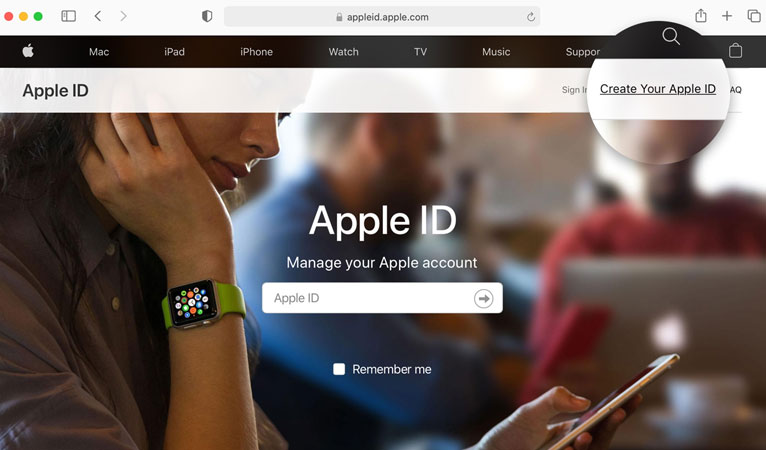
free apple id

Steps to signing up free Apple ID

It is possible for you to create your free iTunes account even though you do not have an iPod or iPad. This helps you to access Apple’s online store. Below, we provide you the guideline.

Steps:

  1. Launch the iTunes. If you have this app on your computer, you need to download the latest version. To download, visit the iTunes website.
  2. Look at the left panel of the iTunes. Click the iTunes Store menu option (below the STORE section).

create new itunes

Click Sign In at the top of the right-hand side of the iTunes main window. Choose the Create New Account button displayed in the dialog screen.

  1. There is a welcome screen and click Continue. Then, you have to read the Apple’s terms and conditions. If you want to continue and you agree with these, click the check box at the side of I have read and agree to these terms and conditions. Click Continue to go to the next step.
  2. You will see Apple ID Details screen and you must enter all the required information to create the iTunes account, such as our email address, birthday, and password. Fill the secret question to help you at any time when you forget about the security. Clear one or both check boxes if you do not want to get any communications from Apple through your email. Click Continue.
  3. If you want to pay by credit card, choose the type of your credit card by clicking one of the radio buttons. After that, you must enter the details of your cards based in the correct field. Enter your billing address details based on the credit card registration. Click the Continue button to proceed. However, if you use PayPal, not a credit card you must click Continue to verify the details of your PayPal. It will bring you to another screen through your internet browser to sign into your PayPal account. Click Agree and Continue button.
  4. Now, you have created your account. It is successful if you see a congratulations screen to verify that you have an iTunes account right now. Click Done button and finish.

How to Reboot iPhone 12: Release Troubles Instantly

Are you the user of the iPhone 12? If so, you might ever experience some troubles while using it. When you find troubles like iPhone 12 frozen, network issues, worse performance, and any others, you can try to reboot it.

Then, do you know how to reboot iPhone 12? If you never know about it, you can see the explanation below. There will be the right iPhone 12 manual to reboot your device. Just check them out.

reboot iphone 12

The right steps to reboot iPhone 12

To reboot your iPhone 12 successfully, you need to do the right steps. So, you can follow the steps below to make it happen. Here we go.

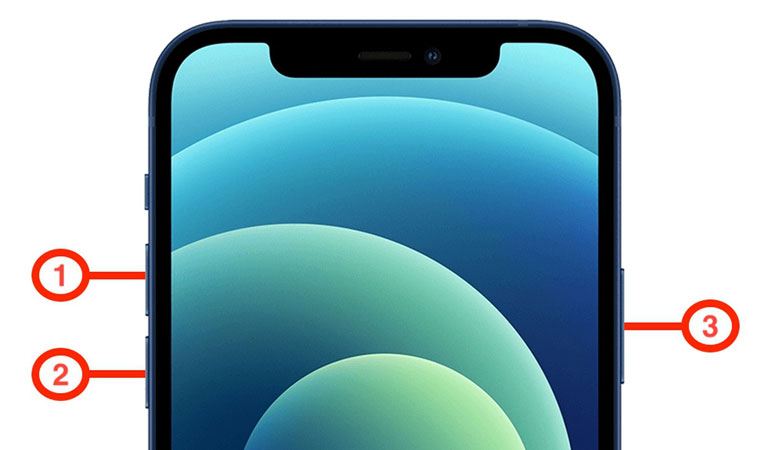
  1. Press the Volume up

First, you have to press this button that is located on the right side of the phone. Don’t forget to quickly release it after you press the button.

  1. Press the Volume down

After you do the first step, you can do the same to the Volume down button. You can press and release the button. It is located on the right side of the phone, under the Volume up button.

  1. Press and hold the side button

Last, you can end this action by pressing and holding the Side button. It is located on the left side of the phone. You can hold the button until you see the Apple logo occur on the screen of your phone. When the logo appears, you can release the button.

After you do this step, the iPhone 12’s screen will go dark. Then, it will start to shut down and also reboot automatically.

2 significant benefits of rebooting your iPhone

When you reboot your phone, you will get a few benefits. Here are the two significant benefits you will get. Check them out.

  1. Help the iPhone 12 resolve network issues

After you use your device for a long time, it is possible that your phone loses connection with the T-Mobile network. As a result, this condition will lead to network issues. So, by rebooting your iPhone 12, some issues like a poor signal, slow data speeds, messaging problems, and calling problems will be resolved.

  1. Improve the iPhone 12’s performance

Some open background applications on your phone will slow down its performance. When you always reboot your phone regularly, all of them will automatically be closed. Thus, when all apps are closed, your phone will get better performance.

Well, that is all about how to reboot your iPhone 12 to share with you. Just do it and get the benefits of rebooting your phone.

How to Factory Reset iPhone Without Password Code

If you are the iPhone user, you need to think about how to factory reset iPhone. This way can be beneficial to make the phone go back to the normal condition. So, you get the best solution when it gets trouble while being used because of several error things. Those are such as getting lagged, slow running apps and program, work abnormally, and so on.

You can do the factory reset iPhone easily. It is because you don’t need to do many ways. Besides, it does not require so long time to make it happen as well. So, you can do it anytime you need quickly. If you using the new iPhone 12, you need to read iPhone 12 user guide in order to mastering your new iPhone.

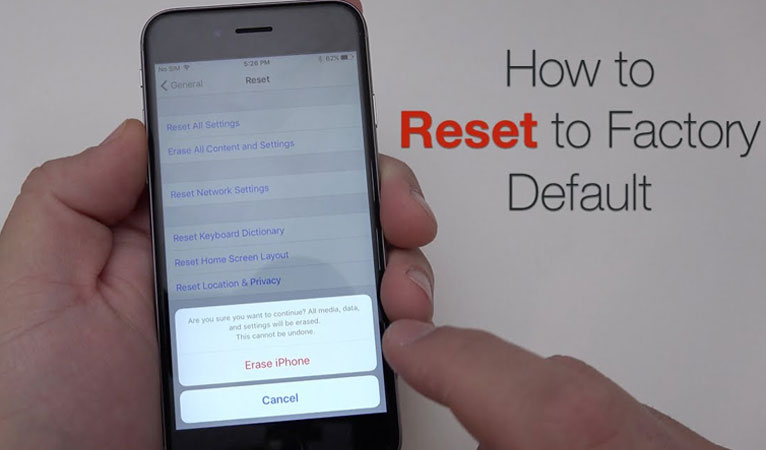
factory reset iphone

Essential things on how to factory reset iPhone

In spite of being easy to do, reset your iPhone to the factory setting will erase all apps and data you add. All of them will lose. Your phone will be back to the first set like new or when you use it for the first time.

Therefore, it is necessary for you to backup all data and apps which are required. Those are like apps for business, files (includes photos, videos, documents, etc.), and some other essential things saved in your phone.

Remembering that to reset the phone will need a password code. It will be difficult for you who do not remember the password you made. In this case, you do not need to be worried. It is because there are several ways to do to reset the phone without password code. Here are the ways to do it.

The ways to carry out of how to factory reset iPhone without password:

  1. Connect iPhone to the computer

Do it by tapping and holding the front button when you connect your iPhone to the laptop with USB. Then, after the logogram of iTunes appears, release the button. You need to know that when it happens. It shows that your iPhone go to the Recovery Mode.

  1. Launch iTunes

When iTunes does not launch automatically, you need to begin it. You should do because not all the process of connecting it to the computer will make the iTunes appear automatically.

  1. Do the factory reset

The last way to do after the iTunes logogram appears is reset the phone. In the iTunes, just click restore after there is an instruction for it. Wait several minutes while it is processing. When it finishes, it means that you are successful in making the phone go to the factory setting.

The right way to do when your phone gets troubles or errors is making iPhone into factory reset. It can be the best way when the problems seem hard to solve.

Simple Guide How to Tell Siri Who You Are on the iPhone

The users of iPhone are happy due to the Siri feature. Siri is a smart system that can help the Apple users to do many things. As the users, you can ask questions to Siri in a random way and ask to help you do things on your phone. You can ask Siri to browse and even make a call. Here’s how you can tell Siri about you just in a simple way.

tell siri who you are

Many people are happy with this feature. But still, some of them need to know how to activate it. And yes, Siri can be a little bit impersonal. You can tell Siri who you are before you use it. And the question is about the way to tell Siri about yourself.

How to telling Siri about you on your iPhone

It is all started with a contact, your own contact. Make sure that you have your own number in your contacts. If you don’t have, the write it and save your own number. After setting this, now it’s time to turn on the Siri and introduce to Siri the real you.

After you got your number on your phone, then head to the Settings and scroll down the menu. Go for the Siri and Search. To use Siri, toggle the menu that you can see. Please only turn on the ones that suit you.

You will see the menu My Information in the middle of the screen. Tap it and pick your name from the Contact list. And now, Siri understands who you are.

And you can also practice how to use Siri if you haven’t used it before. It is a nice intelligent robot that developed for the Apple.

You can start from say a greeting to Siri and continue to ask something to get a proof for yourself. Isn’t it fun to play with the technology?